Wi-Fi setup with 4STREAM
JP150PCB 1.3PCB 1.4Jan PřibyslavskýThis page does not apply to the product or PCB revision chosen in the header.
The on-board Wi-Fi streaming module is set up with the 4STREAM mobile app. The procedure resets the module to its factory defaults, connects your phone to its temporary access point, and joins the module to your home network.
Prerequisites
- The 4STREAM app on your phone.
- A Wi-Fi antenna connected to the module (mandatory for Wi-Fi operation).
- The module powered and the Wi-Fi input selected (status LED white).
Factory reset and access point mode
- Start a factory reset of the Wi-Fi module: hold the encoder button with the Wi-Fi input selected
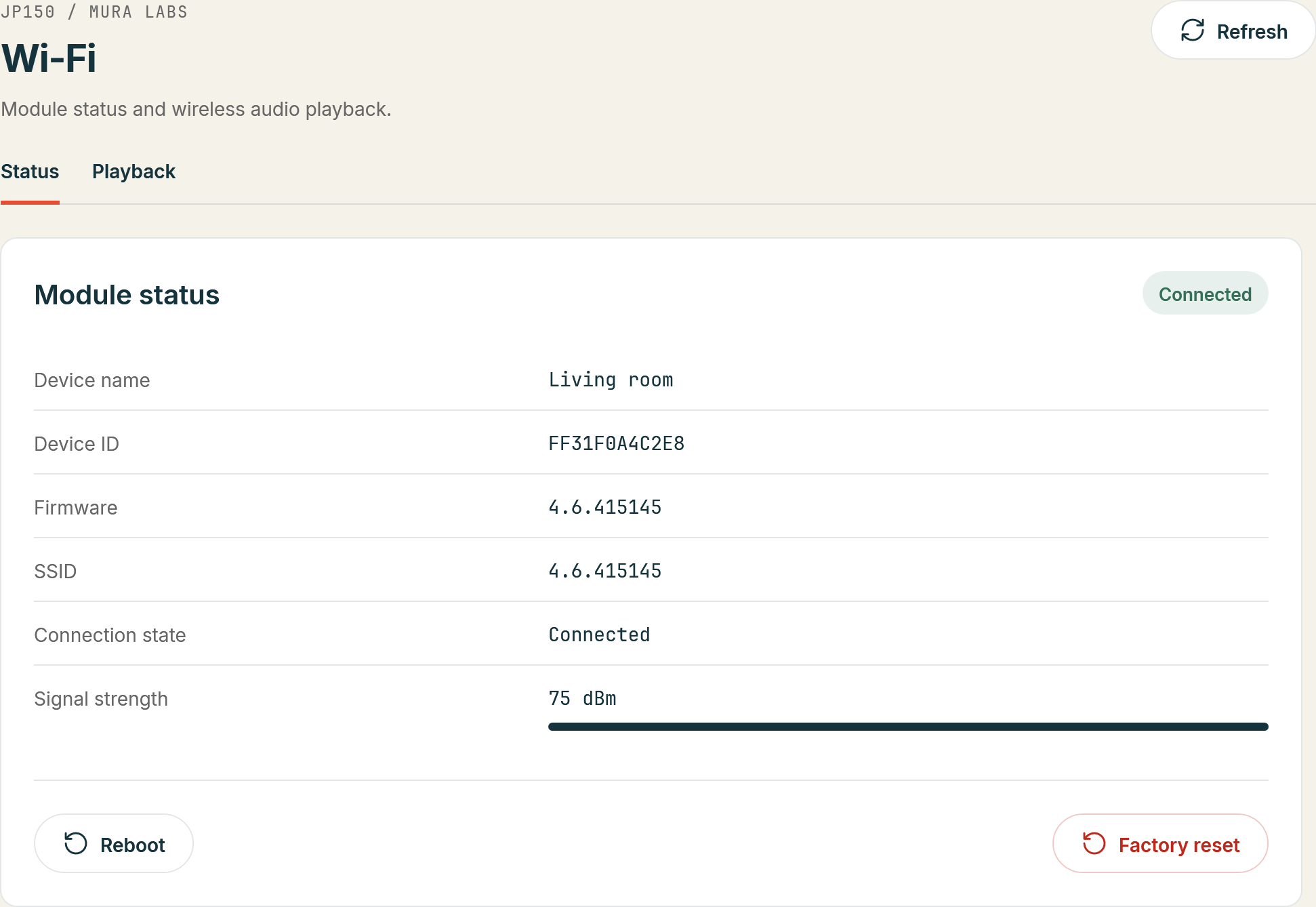
until the white status LED starts blinking; or click Factory reset on MuraLink's Wi-Fi > Status
and confirm; or send
WIFI:RELOADover the control interface. - Wait about 20 seconds to one minute for the module to restart and open its temporary Wi-Fi network.
- On the phone, connect to the Wi-Fi network whose name contains "A31Audio" or "SoundSystem".
- Open the 4STREAM app; the device appears once the phone is on the module's access point.
Joining your home Wi-Fi network
- In the app, select the discovered device.
- Choose the option to add or configure a new Wi-Fi network for the device.
- Select your home network and enter its password.
- Confirm. The device leaves its own access point and joins your network; it no longer appears as a separate Wi-Fi network afterwards.
MuraLink's Wi-Fi > Status shows the Connection state and the Signal strength once the module is
on your network; over the control interface WIFI:NETSTATE? and WIFI:SIGNALSTR? answer the same
(WIFI reference).
If the device does not appear in 4STREAM, repeat the factory reset, check the antenna, and make sure the status LED shows the Wi-Fi input. Continue with Spotify Connect to test playback.