TWS: controls in MuraLink
JP150PCB 1.3PCB 1.4since 26.9.0Jan PřibyslavskýThis page does not apply to the product or PCB revision chosen in the header.
Connect a unit to the PC through its USB DATA connector and start MuraLink. Select the unit's COM port and click Connect. Then open Bluetooth > TWS in the sidebar: the TWS (True Wireless Stereo) settings and status at the top, the remembered devices below.
TWS settings and status
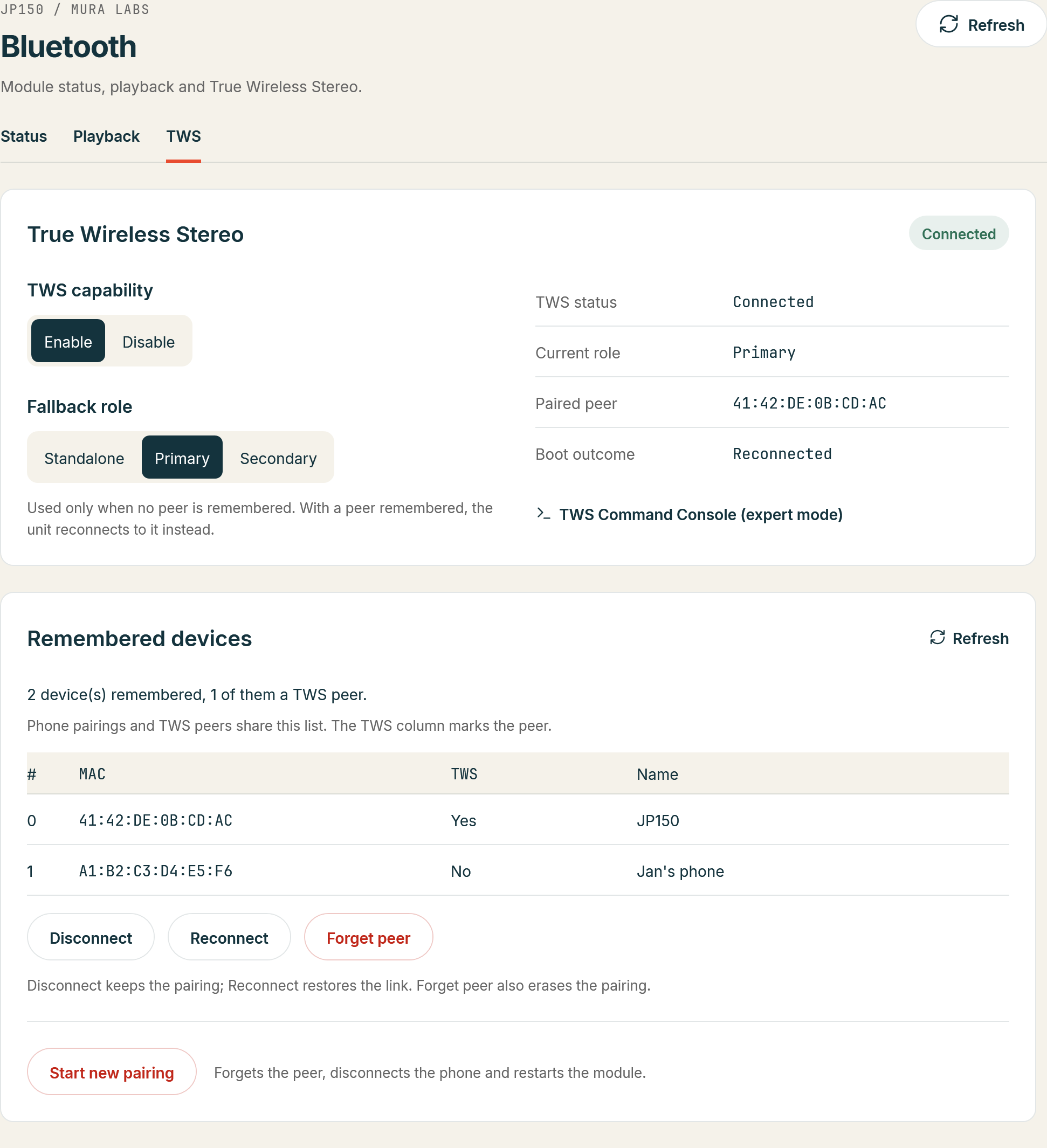
| Element | Description |
|---|---|
| TWS capability: Enable / Disable | A two-button switch. The selected (dark) button shows the current state; only the other button can be clicked. When TWS is disabled, all other controls in the TWS section are greyed out. Immediately after MuraLink connects it can take a moment before either button appears selected. |
| Fallback role: Standalone / Primary / Secondary | Three joined buttons; the selected button shows the stored Fallback role. Clicking a different button opens the Change TWS fallback role dialog with three options. OK saves the new role in the unit; it takes effect the next time the unit restarts, and until then a red message reads "A fallback-role change is pending. Reboot or power-cycle the device to apply it." Apply now saves the role and immediately restarts the unit's Bluetooth module: Bluetooth audio stops for a few seconds, and any existing TWS link is dropped. Cancel discards the change. Clicking the role that is already selected has no effect. The Fallback role applies only when no peer is remembered. |
| TWS status, Current role, Paired peer, Boot outcome | Status fields, explained on status and troubleshooting. Paired peer shows the Bluetooth address of the remembered peer, or n/a if no peer is remembered. |
| Restart notice | While the Bluetooth module restarts (after Apply now or Start new pairing) the section shows "The Bluetooth module is restarting. Values shown are not current." Wait until the notice disappears; this normally takes about 5 seconds. |
| "Remembered peer did not respond" banner | Appears when the unit remembers a peer, but the peer did not respond at power-up. The banner has its own Start new pairing button and disappears as soon as the peer connects. |
| TWS Command Console (expert mode) | Opens a separate window for developers and system integrators. Not needed for normal use; see the command console. |
Remembered devices
| Element | Description |
|---|---|
| Summary line and Refresh | The summary shows how many devices the unit remembers and how many of these are TWS peers, for example "2 device(s) remembered, 1 of them a TWS peer." MuraLink reads the list when it connects and then every few seconds while the Bluetooth > TWS page is open. Refresh reads it immediately; until the list arrives the table shows "Loading…". |
| Table | One row per remembered device, with the columns # (slot number), MAC (Bluetooth address), TWS (marks the TWS peer) and Name. Hosts such as phones usually show their name; the TWS peer usually has no name and is marked in the TWS column. |
| Disconnect | Disconnects the TWS link to the peer but keeps the pairing, so that the two units can reconnect later. |
| Reconnect | Reconnects the unit to its remembered peer, for example after Disconnect. The link is restored within a few seconds and TWS status changes accordingly. If reconnection is not possible, the status bar at the bottom of the MuraLink window shows the reason: the peer is already connected, no peer is remembered, or TWS is disabled. |
| Forget peer | Disconnects the peer and erases the pairing on this unit only. You are asked to confirm. The status bar then shows "TWS peer forgotten." and the TWS row disappears from the table. |
| Start new pairing | Clears the TWS pairing and starts pairing again. After you confirm: the currently selected Fallback role is saved, any connected host is disconnected, the remembered peer is forgotten, the Bluetooth module restarts, and the Fallback role is applied (a Primary unit starts searching, a Secondary unit starts waiting). The sequence takes about 5 seconds; only the Bluetooth module restarts, the rest of the unit keeps running. Because Start new pairing always uses the currently selected Fallback role, select the role first and then click Start new pairing. |